How to use HTTPie with Directus?
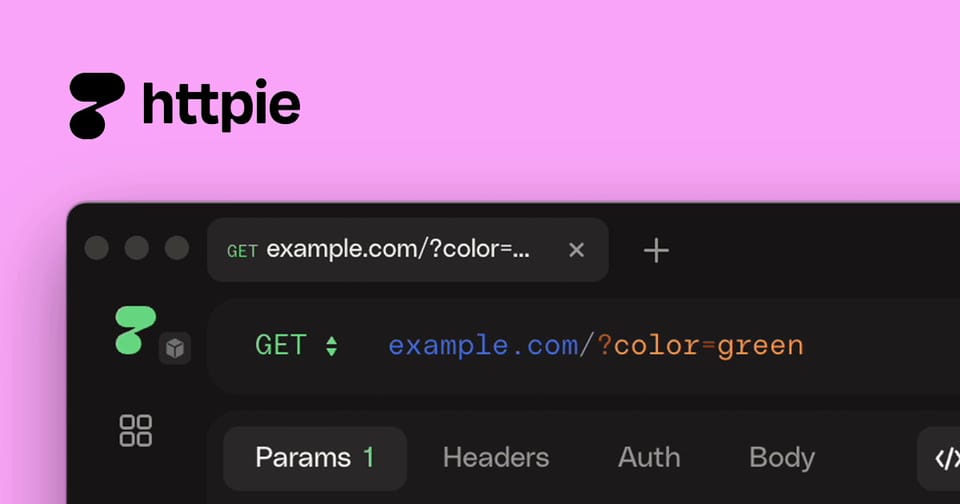
Directus provides a powerful, instant API for any SQL database, but interacting with it shouldn't feel like a chore. HTTPie Desktop app brings a "human-friendly" philosophy to a sleek graphical interface. This guide focuses on how to leverage HTTPie to manage your Directus integrations, from collection queries to complex file uploads, all without touching a terminal.
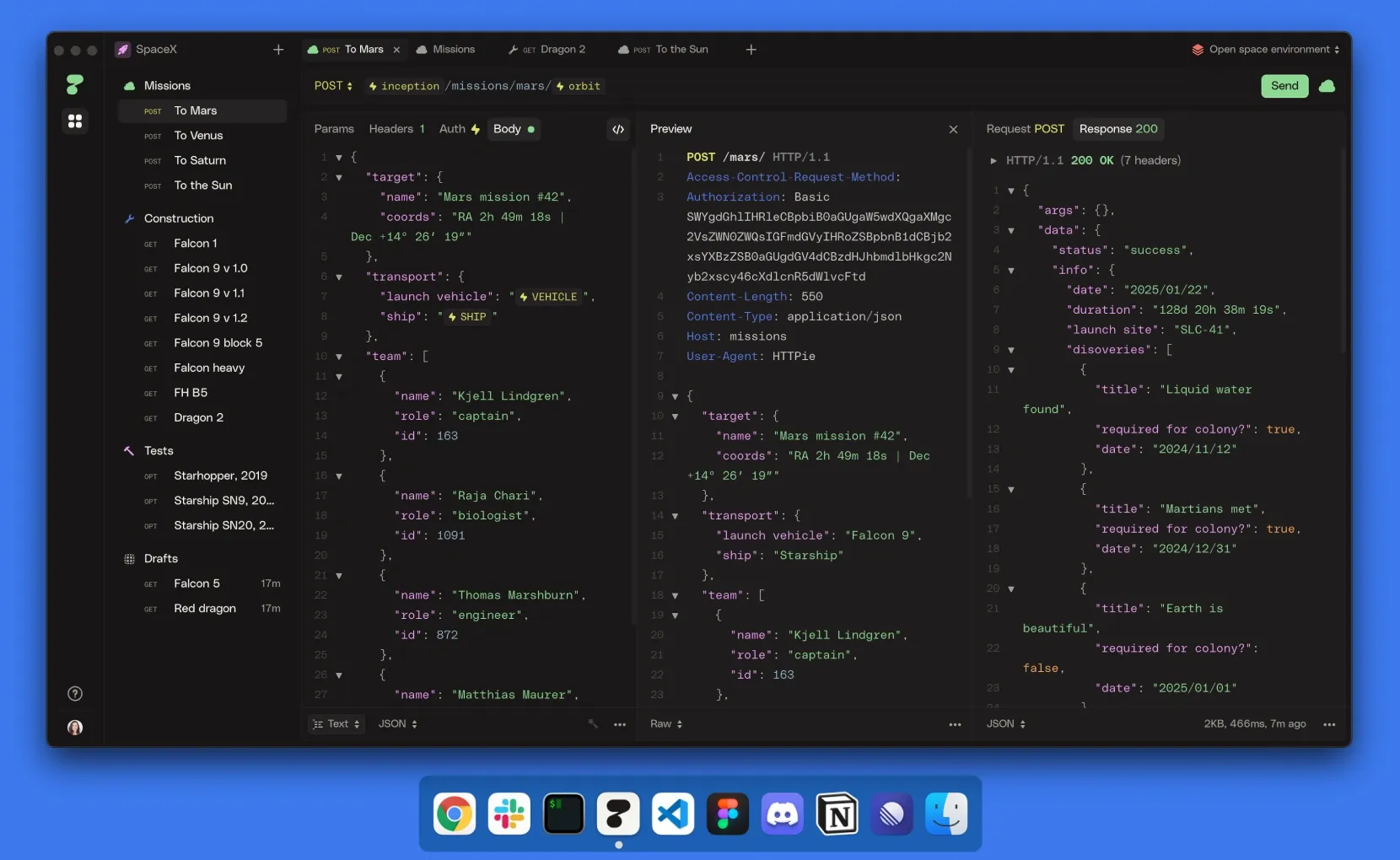

1. Setting Up Your Directus Environment
One of the biggest advantages of a GUI is the ability to visually manage different project environments (e.g., Development, Staging, Production). In HTTPie, this is done through Spaces and Environments.
Creating Your Space and Variables
- Open the HTTPie Desktop app and create a new Space for your project.
- Navigate to the Environments tab on the left sidebar.
- Create a new environment (e.g., "Production") and define the following variables:
base_url: Your Directus project URL (e.g.,https://your-project.directus.app).api_token: Your Directus static token, found in your user profile under the "Token" section. Check out this article to Create an API token.
By using {{base_url}} in your request bar, you can quickly switch between local and live instances just by changing the active environment in the dropdown.
Storing Authentication at the Collection Level
Instead of adding the Authorization header to every single request, you can set it once at the Collection level.
- Right-click your Directus collection in the sidebar and select Settings.
- Go to the Auth tab and choose Bearer.
- In the token field, enter
{{api_token}}.
Now, every request you create within this collection will automatically inherit this authentication, keeping your request tabs clean.
2. Querying Items with the GUI
The /items endpoint is the heart of Directus. In HTTPie, you can build complex queries using the dedicated Params tab rather than manually stringing together a long URL.
Fetching Data with Query Parameters
To fetch specific data, such as the title and status of your three most recent "published" posts, where posts is the name of the collection, follow these steps:
- Method & URL: Set the method to
GETand the URL to{{base_url}}/items/posts. - Params Tab: Add the following keys and values:
fields:title,status(limits the response to these fields).filter[status][_eq]:published(applies a filter rule).sort:-date_created(sorts by newest first).limit:3.
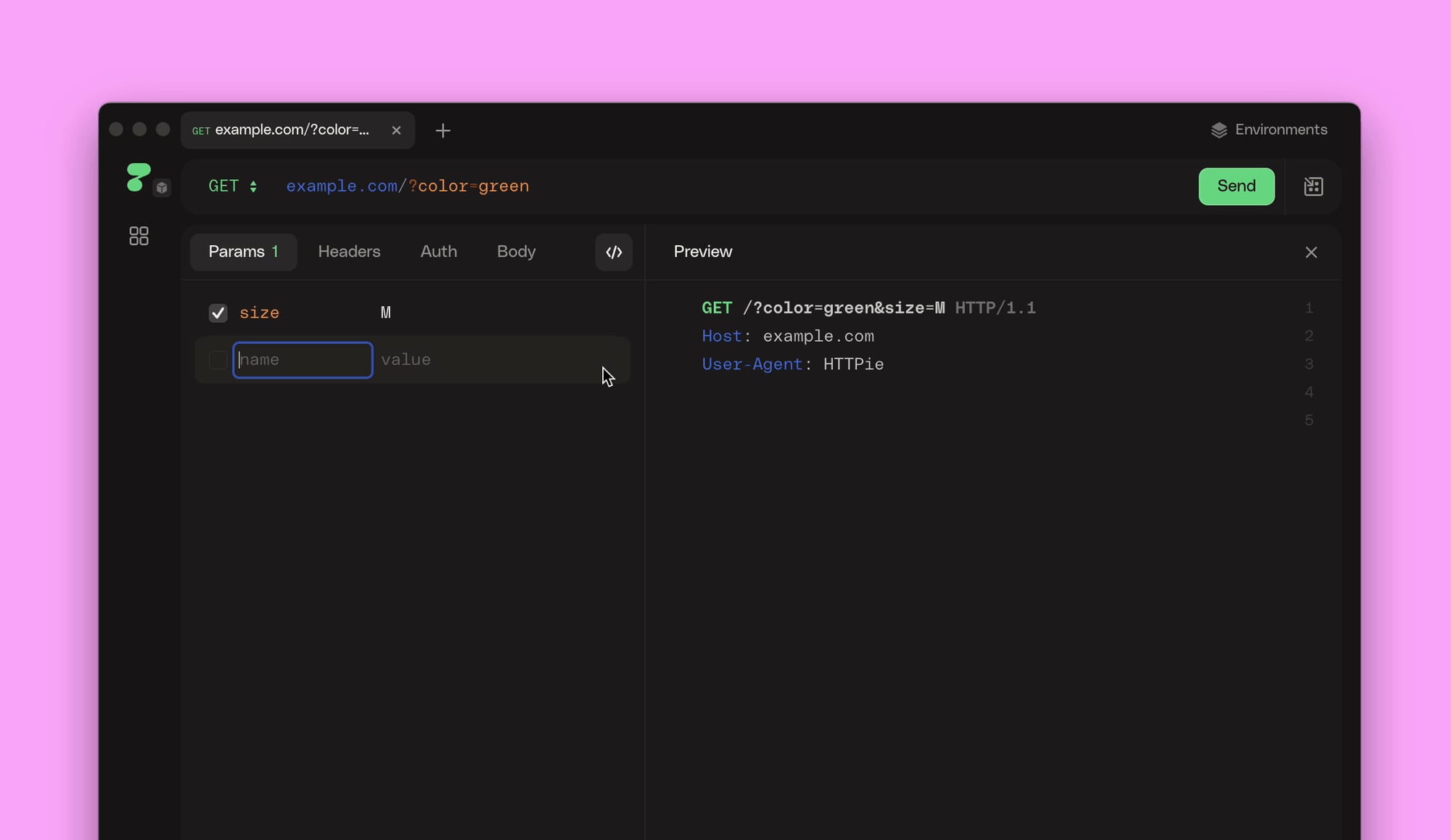
If you click the little code icon located on the tab bar, HTTPie provides a live URL Preview as you type, ensuring your syntax matches Directus' expectations before you hit "Send" or if you need a quick copy-and-paste job on the frontend.
Creating New Items
To create an item in Directus, create a new request under your collection in HTTPie and switch the method to POST. HTTPie will automatically switch the body type to JSON.
- Click the Body tab and if prompted select Text.
- Add fields from your collection in Directus like
title,content, andstatus. - For non-string values (like a boolean
featuredflag), use the true or false without quotes to ensure the data is sent as a raw boolean rather than a string.
3. Managing Assets: The Files Endpoint
Handling files is where HTTPie truly shines over traditional tools. The /files endpoint in Directus handles all media assets.
Uploading Files via Multipart Form
Uploading a file usually requires a multipart/form-data request.
- Set the method to
POSTand the URL to{{base_url}}/files. - In the Body tab, select Form (Multipart).
- Add a field named
file. - Change the field type from "Text" to "File" using the dropdown icon. This opens a native file picker, allowing you to select an image from your computer.
- (Optional) Add a
titlefield or other fields from the file object to give your file a name or attributes in the Directus Media Library.
Fetching and Previewing Assets
When you request a file's metadata via GET {{base_url}}/files/<id>, HTTPie displays the JSON response. However, if you use the /assets/<id> endpoint, HTTPie's Response Preview will actually render the image directly in the app, which is perfect for verifying that your Directus image transformations (like ?width=200) worked as expected making it the perfect playground.
Conclusion
By complementing your Directus development with HTTPie, you gain a visual and interactive overview of your entire API architecture. You can organize requests into logical folders and sync your environments across devices (cloud signup required). There is so much more that HTTPie can do, I highly recommend checking out their documentation and testing it out for yourself.