Mastering Data filtering in Directus
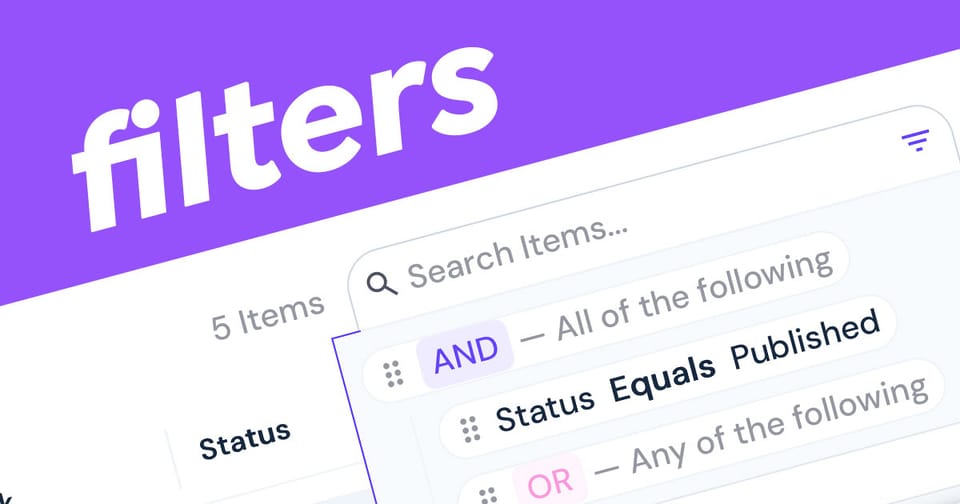
Managing large datasets can be overwhelming, but the Directus Data Studio makes it easy to find exactly what you need. Whether you're a content editor or a developer, mastering the built-in filtering system is the fastest way to navigate your collections.
1. Locating the Filter Tool
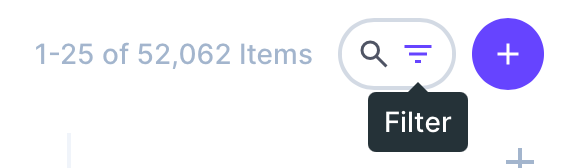
To start filtering, navigate to any collection in your Data Studio. Look for the filter icon (represented by a funnel inside the search bar) at the top of the item list.
2. Creating a Basic Filter
Once you click the filter icon, follow these steps:
- Select a Field: Choose the specific column you want to filter (e.g., "Status" or "Date Created").
- Choose an Operator: Select how you want to compare the data. Common operators include:
_eq(Equals)_contains(Case-sensitive substring)_in(Matches any value in a list).
- Enter a Value: Provide the specific criteria, like "Published" or a specific author's name. Some fields will allow you to choose from a list of available values such as dates and dropdown fields.
3. Advanced Filtering with AND/OR Groups
For more complex queries, Directus allows you to group multiple filters:
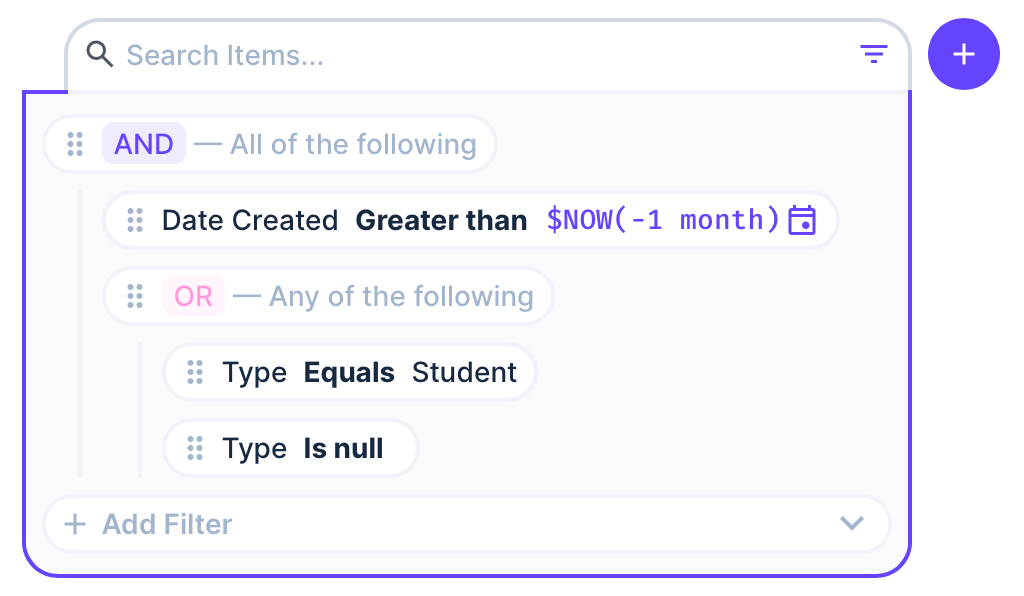
- AND Groups: All criteria must be met. For example, "Status Equals Published" AND "Author Equals Admin".
- OR Groups: Items only need to meet one of the criteria. For example, "Category Equals News" OR "Category Equals Updates".
- Indentation matters: To include a filter in a group, it must be indented below the AND/OR operator in the Directus UI by click and dragging on the drag handle and placing it within the AND/OR group.
Video Filters from Directus
The video example above comes from the Directus website and shows how to filter subscribers by USA or Norway and use a gmail addresses.
4. Dynamic Variables & Functions
Directus supports dynamic filtering that updates automatically:
- $NOW: Use this for time-based filters to show items before or after the current moment.
- $CURRENT_USER: Filter items created by or assigned to the person currently logged in.
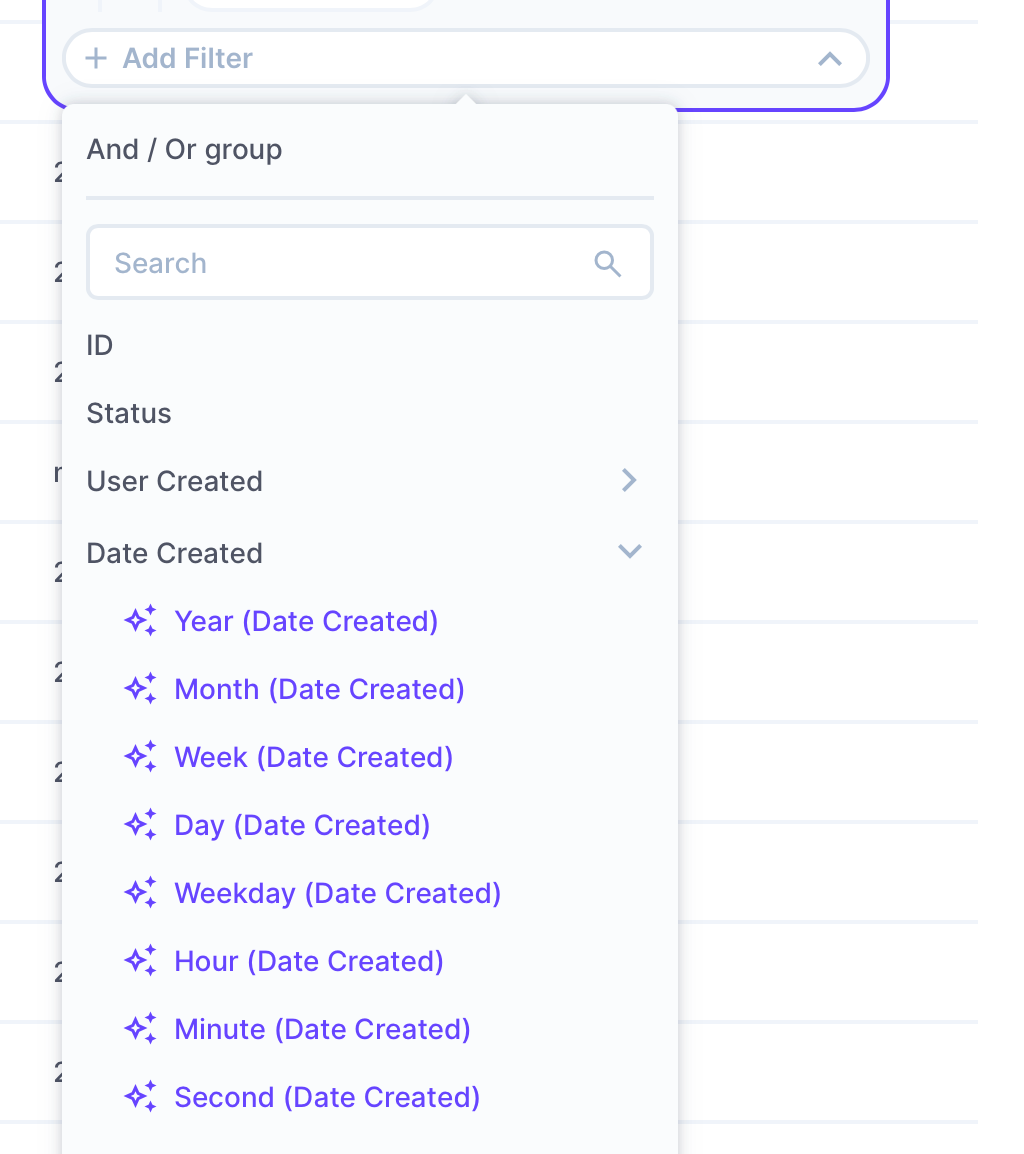
- DateTime Functions: You can narrow results down to a specific year or month using functions like
year()ormonth()directly in the filter rules.
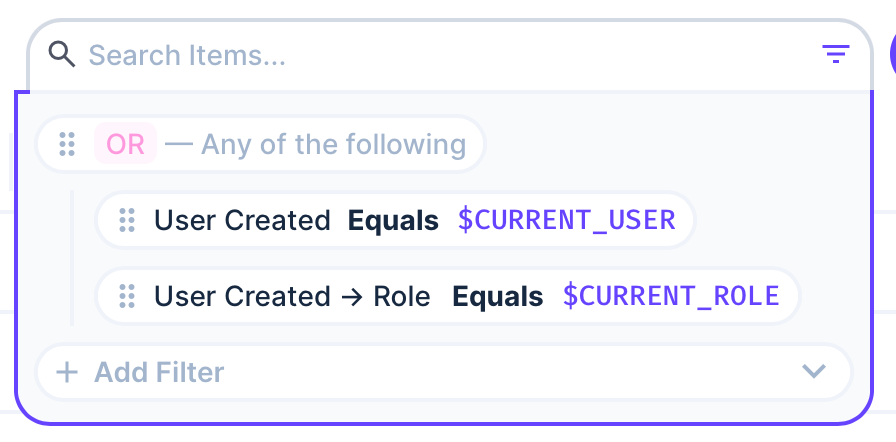
There is a great video on how to use Dynamic Variables on Directus TV!


5. Relational Filtering
One of the most powerful features is filtering across collections. If your "Articles" collection has a link to "Authors," you can filter articles based on an author's specific details, such as their email or bio, without leaving the current view.
6. Bookmarking Filters
Bookmarks are a view or snapshot of the layout, search and filters for the current collection. This creates an entry underneath the collection in the navigational panel. You can assign a name and icon to represent the data. If you're frequently filtering the same way, consider bookmarking the view and use dynamic variables to keep the data relevant in future.
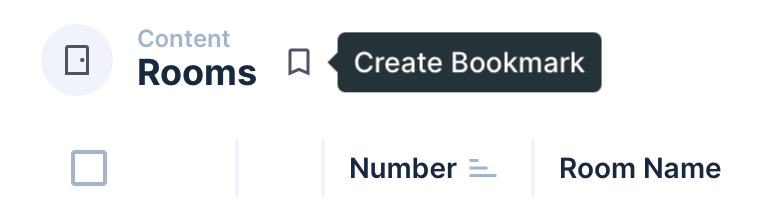
You can take this a step further and create global bookmarks for all users to see. Watch this great video from Directus TV:
 Bryant GillespieDeveloper Advocate at Directus
7. Filters in Permissions
Filters are also available in user role permissions where you can limit what users can read, create, update and delete within Directus. For example, they can only update items created by their role group and only delete items created by themselves. This can also include relational fields such viewing posts where the status of the blog channel is published.
Conclusion
The Directus Data Studio filters are more than just a search bar, it's a powerful engine that lets you slice through complex data with surgical precision. By mastering basic operators and nesting logical groups, you can transform a cluttered collection into a streamlined, actionable view in seconds.
The best way to learn is to experiment: try combining a dynamic variable with a relational filter to see how quickly you can surface exactly what you're looking for.