How to create a Directus webhook for external systems
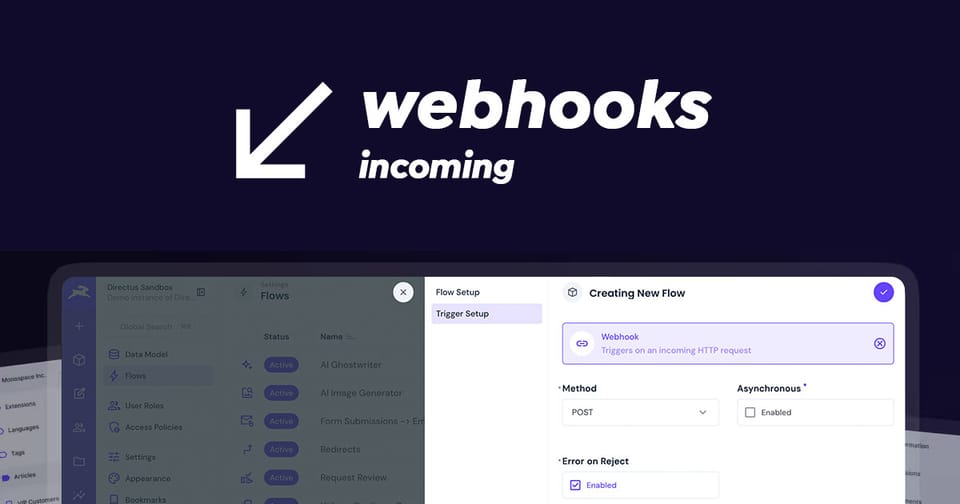
In Directus, "Incoming Webhooks" are handled using the Webhook Trigger within the Flows module. This allows external services to push data into Directus via a unique URL, which can then trigger internal actions like creating records, sending emails, or transforming data.
To create an incoming webhook for external systems in Directus, create a new flow and set the trigger to "Webhook". Once saved, a URL will be generated. POST data to this URL and it will trigger the new Flow.
Here is a video from Directus showing these steps.
Video from Directus
Below is a comprehensive step-by-step guide on how to create a Webhook flow and also secure it. You will need a Directus account with administrator permissions.
Step 1: Create Your Incoming Webhook Flow
- Go to Settings (cog icon) > Flows and click + to create a new flow.
- Choose Webhook as the trigger type.
- Configure Settings:
- Method: Select
POST(standard for receiving data). - Asynchronous: Toggle this ON and Directus will immediately respond with a
200 OKbefore processing the data. This will ensure any processed data or API keys are not leaked in the response.
- Method: Select
- Get Your URL: Once saved, you will see a unique URL formatted like:
https://directus.app.../<id>.
Step 2: Secure the Incoming Connection
Securing an incoming webhook is vital because, by default, any client with the URL can trigger your automation. You can secure these endpoints in Directus Flows using a Condition Operations to validate secrets or custom headers.
The most common way to secure a webhook is by requiring a "secret" in the request headers or body that only you and the sender know.
- Create a new Operation to the Webhook Trigger, and choose the Condition operation.
- Check if the incoming request contains your secret. For example, if you require a custom header
X-Webhook-Secret:
{
    "$trigger": {
        "headers": {
            "x-webhook-secret": {
                "_eq": "your-super-secure-secret"
            }
        }
    }
}
Lastly, save the changes by clicking the tick.
Leave the Fail path empty or add a Log to record unauthorized attempts, then continue your workflow on the Success path.
Step 3: Process the Data
To do something with the incoming data, add an Operation after the trigger. In this example, we'll create an item in Directus with the incoming data.
- Click the + below the trigger and select Create Data.
- Collection: Choose where to save the data (e.g.,
transactions).
Payload: Use the $trigger variable to access the incoming data. For example, if you send a Stripe transaction JSON object, use the following payload:
{{$trigger.body}}
If you have a custom schema, you can map your fields like this:
{
    "id": "{{$trigger.body.id}}",
    "amount": "{{$trigger.body.amount}}",
    "currency": "{{$trigger.body.currency}}",
    "customer_id": "{{$trigger.body.customer}}"
}
Step 4: Sending Data to Your New Webhook
Make sure to test your new endpoint by sending aPOST request with a JSON body.
Example: Using HTTPie
HTTPie is perfect for quick tests. Replace the URL with your unique flow trigger URL and set up the custom authentication header.
POST https://directus.app..../<id>
In the Body tab, set the type to Text and replicate the JSON of the external platform with some sample data. Click Send and check the log in Directus.
Example: Using Postman
To test with Postman:
- Set the request type to POST.
- Paste your Webhook Trigger URL into the address bar.
- Go to the Headers tab, add a new key:
X-Webhook-Secretand set the value toyour-super-secure-secret. - Go to the Body tab, select raw, and set the format to JSON. Replicate the JSON object of the external platform with some sample data.
- Click Send. You should receive a
200 OK(or the response defined in your flow).
Step 5: Verifying Success
You can verify the incoming data in two places:
- Flow Logs: Check the Logs tab in your flow to see the exact payload received under
$trigger.bodyand check each operation in the workflow has run correctly. - Data Studio: Check the collection you targeted in your Create Data operation to see the new record.
Security Best Practices
- Avoid Sensitive Data Leaks: Never respond with the "Data of Last Operation". The Response Body may contain sensitive environment variables or API keys. Instead,
- Validate Input: Consider using multiple condition operations to ensure the incoming JSON contains the exact fields and data types your system expects before saving it to your database.
- Use Asynchronous Flows: For workflows that might take time or trigger complex logic, enable Asynchronous in the trigger settings to prevent timing attacks or timeouts.
Conclusion
Incoming Webhooks in Directus are a great way to integrate with external systems that can't format data into your projects schema. Flows brings validation, logic and accountability to all incoming requests so your project remains robust and secure.