How to change content in Github from Directus
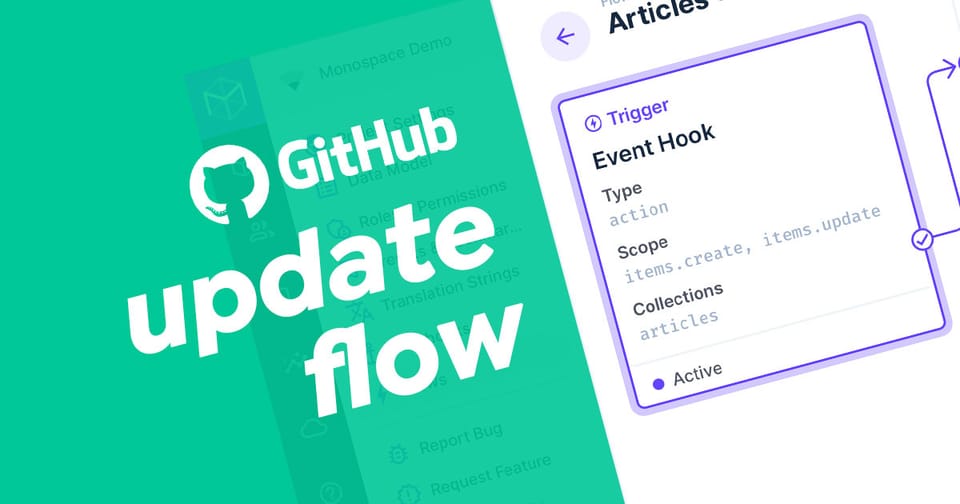
Ever wanted to automatically update content in a Github repo automatically from Directus? This article will show you how.
To change Github content from Directus, you'll need to set up workflows on the item:update hook for the collection and fetch all the required content. Use my extension called Base64 Operation to encode the content and then use the Web Request operation to GET the sha hash and PUT the request to your Github repo.
You will need the following to complete this tutorial:
- admin rights to your Directus project
- install the Base64 operation from the Marketplace or
npm i @timio23/directus-operation-base64. - A Github Personal Access Token with permission to write to your repo.
Step 1: Create new Flows in Directus
In Directus Flows, create a new workflow called "Update Github Part 1" or similar with an Event Hook trigger. Choose Action (non-blocking), set the scope to item:update, and choose the collection to watch.
We have access to the following variables in the workflow:
{{$trigger.collection}}
{{$trigger.keys}}
{{$trigger.payload}}Save and return to all Flows.
Create a new workflow called "Update Github Part 2" or similar with the trigger Another Flow. Set the response to Data of last operation".
Save and edit the first flow again.
Step 2: Fetch the full payload of all edited items
Create a new Data Read operation. Set the collection to {{$trigger.collection}}, IDs to {{$trigger.keys}} and the payload can be left blank. If you would prefer to limit the query to improve performance or include relational fields, use the standard query object in this field.
Create a new operation and choose Trigger Flow. Choose the Part 2 flow that we created in Step 1 and set the Iteration mode to Serial. Lastly, set the Payload to {{$last}} which is the Read Data output we just created. If you need to add additional steps between these operations, you can use the operation ID instead eg {{item_read_xxxxx}}.
Save and return to all Flows.
Step 3: Encode the Content for Github
Now that we have all the data, open the Part 2 flow that we created in Step 1. When using data from another flow, the payload is available in the {{$trigger}} variable.
Add a new operation and select Base64 Encode/Decode operation and leave the method as Encode and set the Payload to the content to write to the Github file. For the entire payload, use {{$trigger}} or a specific field in the payload {{$trigger.content}}.
The output from this operation will be a string.
Step 4: Submit the Github API Request
Before we can write the encoded content to Github, we need to fetch the existing file's sha hash from Github. This is a simple GET request to the file path. Create a new Web Request operation and set the URL to https://api.github.com/repos/OWNER/REPO/contents/PATH where the OWNER is the account owner of the repo, REPO is the name of the repo and PATH is the file path from root including the destination file name.
Set the method to GET from the list and create the 3 headers below by clicking the Create New button and populating the Header field with the key and the Value field with the value like in the table below.
| Header | Value |
|---|---|
| Accept | application/vnd.github+json |
| Authorization | Bearer PERSONAL_ACCESS_TOKEN |
| X-GitHub-Api-Version | 2026-03-10 |
The response include the sha hash in the etag header with double quotes either side.
Now the final request can be made. According to the GitHub API documentation, the request looks like this:
curl -L \
  -X PUT \
  -H "Accept: application/vnd.github+json" \
  -H "Authorization: Bearer <YOUR-TOKEN>" \
  -H "X-GitHub-Api-Version: 2026-03-10" \
  https://api.github.com/repos/OWNER/REPO/contents/PATH \
  -d '{"message":"my commit message","sha":"xxxxxxxxxxxxxxxx","content":"bXkgbmV3IGZpbGUgY29udGVudHM="}'
The message, content and sha are required fields in the body, but if you want it to go in a different branch, you'll need to add "branch": "name-of-branch".
Create a new Web Request operation with the same URL as earlier and set the method to PUT by clicking on Other from the list and typing PUT. Create the 3 headers again by clicking the Create New button.
Lastly, set the Body to the following JSON where the base64_encode key is the ID of your operation from Step 3.
{
    "message": "Your chosen message for the commit",
    "sha": {{$last.headers["etag"]}},
    "content": "{{base64_encode_xxxxx}}",
    "branch": "optional"
}Save changes and test the workflow by updating an item in your chosen collection.
Conclusion
This article has covered how to update files in a Github repository by creating 2 workflows to fetch data, then iterate over the results and update existing files in Github.