File Preview Replace Component
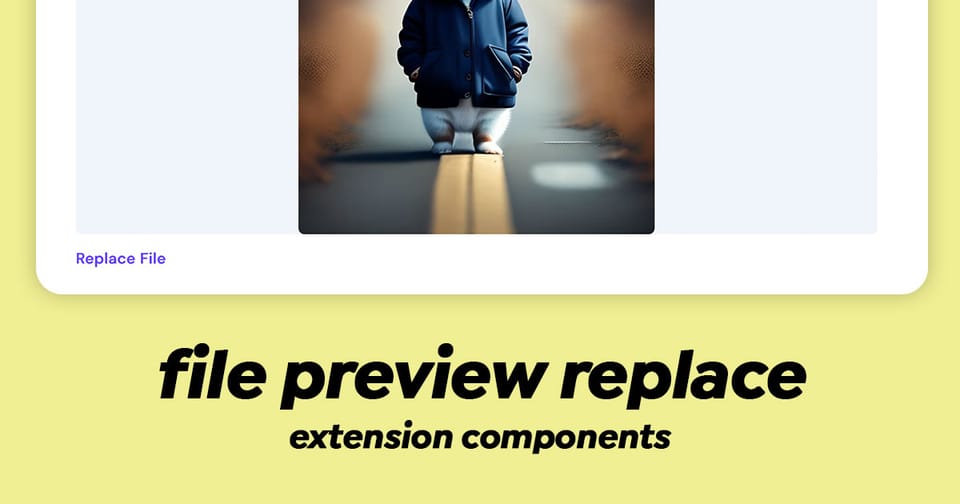
The FilePreviewReplace component in Directus provides a user-friendly interface for viewing and replacing files in Directus. It displays a preview of the current file along with a button that allows users to upload a replacement file through an interactive dialog.
This component is designed to be used in scenarios where you need to:
- Display a preview of an uploaded file
- Allow users to replace the file without navigating away from the current view
- Respect global MIME type restrictions set in Directus configuration
- Handle file uploads with proper validation based on server settings
Composition API
Props
| Prop | Type | Description |
|---|---|---|
file | Pick<File, 'id' | 'title' | 'type' | 'modified_on' | 'width' | 'height'> | Required: The file object containing metadata |
preset | string | null | Optional: Directus asset preset for image optimization (default: 'system-large-contain') |
inModal | boolean | Optional: Whether component is displayed in a modal (default: false) |
disabled | boolean | Optional: Disabled state (default: false) |
nonEditable | boolean | Optional: Marks file as non-editable (default: false) |
src | string | Optional: Direct source URL, bypasses asset URL computation |
Emits
click- Emitted when the preview area is clickedreplace- Emitted after the file has been successfully uploaded and replaced
Usage Example
Here's how to use the file-preview-replace component in your extension:
<script setup lang="ts">
import { ref } from 'vue';
import type { DirectusFile } from '@directus/sdk';

// Example file object
const currentFile = ref<DirectusFile>({
	id: 'file-123',
	storage: 'local',
	filename_disk: 'document.pdf',
	filename_download: 'My Document',
	title: 'Important Document',
	type: 'application/pdf',
	filesize: 2048576,
	created_on: new Date().toISOString(),
	// ... other file properties
});

const isEditable = ref(true);

function handleFileReplaced() {
	console.log('File has been replaced!');
	// Refresh file data, update UI, etc.
}

function handlePreviewClicked() {
	console.log('Preview was clicked');
}
</script>

<template>
	<div class="my-file-manager">
		<file-preview-replace
			:file="currentFile"
			:non-editable="!isEditable"
			@click="handlePreviewClicked"
			@replace="handleFileReplaced"
		/>
	</div>
</template>

<style scoped>
.my-file-manager {
	padding: 1rem;
}
</style>
Component Features
1. File Preview
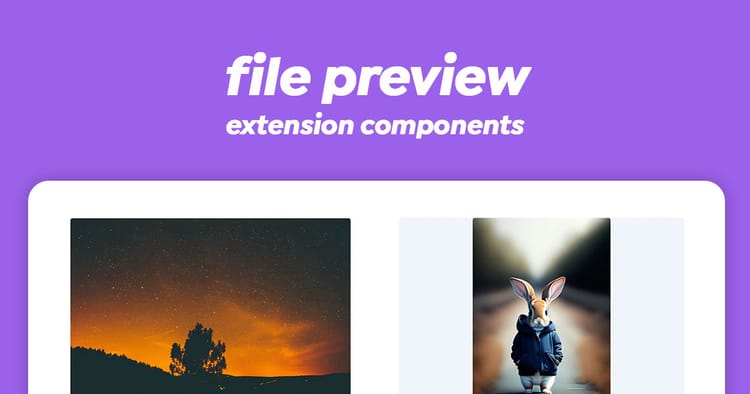
The component displays a file preview using the nested FilePreview component, showing appropriate representations based on the file type (images, documents, etc.).
2. Replace Button
A "Replace File" button appears below the preview (translated via i18n). The button:
- Is disabled when
nonEditableistrue - Opens a dialog modal when clicked
- Shows visual feedback for disabled state
3. Upload Dialog
When the replace button is clicked, a dialog opens containing:
- A title ("Replace File")
- A
VUploadcomponent configured to handle file replacement - A "Done" button to close the dialog
4. MIME Type Validation
The component automatically:
- Retrieves global MIME type restrictions from the Directus server configuration
- Applies these restrictions to the file upload input
- Ensures only allowed file types can be selected for replacement
Styling
The component includes scoped styles for the replace button:
.replace-toggle {
	color: var(--theme--primary);        // Primary theme color
	cursor: pointer;
	font-weight: 600;
	margin-block-start: 0.6875rem;

	&[disabled] {
		cursor: not-allowed;
		color: var(--theme--foreground-subdued);  // Subdued color when disabled
	}
}
The styling uses CSS custom properties (--theme-*) for theming consistency with Directus's design system.
Best Practices
- Always provide a valid file object - Ensure the
fileprop contains all required properties - Handle the
replaceevent - Implement logic to refresh your UI or data after a file is replaced - Use
nonEditablefor read-only scenarios - Disable editing when appropriate for your use case - Respect MIME type restrictions - The component automatically enforces server-configured restrictions
Real-World Example: File Manager View
<script setup lang="ts">
import { ref, onMounted } from 'vue';
import type { DirectusFile } from '@directus/sdk';
import { useApi } from '@directus/extension-sdk';

const api = useApi();
const selectedFile = ref<DirectusFile | null>(null);
const isLoading = ref(false);

async function loadFile(fileId: string) {
	isLoading.value = true;
	try {
		const response = await api.get(`/files/${fileId}`);
		selectedFile.value = response.data.data;
	} catch (error) {
		console.error('Failed to load file:', error);
	} finally {
		isLoading.value = false;
	}
}

async function onFileReplaced() {
	// Refresh the file data after replacement
	if (selectedFile.value) {
		await loadFile(selectedFile.value.id);
	}
}

onMounted(() => {
	loadFile('initial-file-id');
});
</script>

<template>
	<div v-if="selectedFile" class="file-manager">
		<file-preview-replace
			:file="selectedFile"
			:non-editable="isLoading"
			@replace="onFileReplaced"
		/>
	</div>
</template>
Wrapping Up
Much like the FilePreview component, this shows the user the selected file but also provides a button to replace the file. The component handles the upload and replacement for you and simply emits a response when complete.