File Preview Component
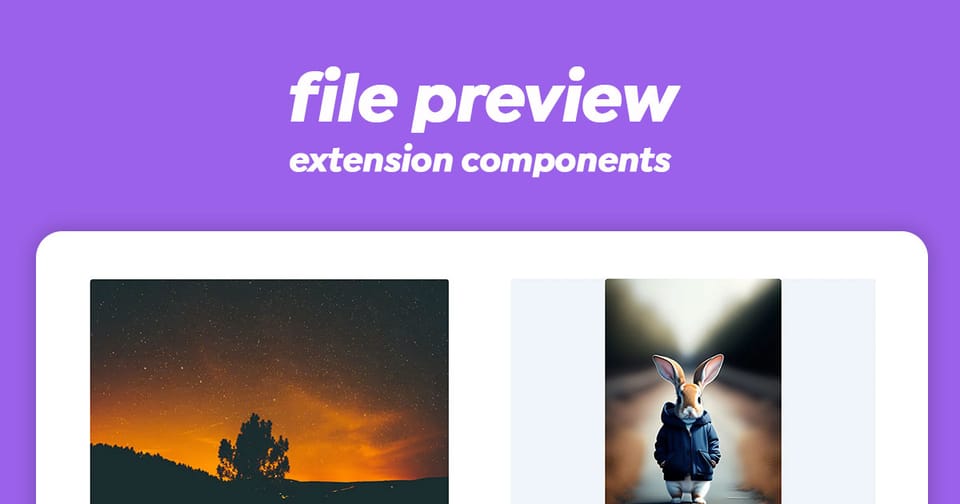
The FilePreview component in Directus designed to display various types of files with intelligent type detection and fallback rendering. It elegantly handles images, videos, audio files, and documents with adaptive sizing and modal support.
This component provides a unified interface for previewing file assets within the Directus data studio. Rather than building separate components for each file type, FilePreview intelligently determines the file's MIME type and renders the appropriate preview - whether that's an embedded image, video player, audio player, or a generic file icon.
Key Features
- Multi-Format Support: Automatically detects and renders images, videos, audio files, and other document types
- Responsive Sizing: Adapts to content with intelligent max-height calculations
- Modal-Aware: Special styling for fullscreen modal displays
- SVG Handling: Special class application for SVG files with tailored styling
- Asset URL Generation: Integrates with Directus asset system for optimized delivery with caching
- Accessible: Supports native audio/video controls for enhanced UX
Composition API
Props
The component accepts the following props:
| Prop | Type | Description |
|---|---|---|
file | Pick<File, 'id' | 'title' | 'type' | 'modified_on' | 'width' | 'height'> | Required: The file object containing metadata |
preset | string | null | Optional: Directus asset preset for image optimization (default: 'system-large-contain') |
inModal | boolean | Optional: Whether component is displayed in a modal (default: false) |
disabled | boolean | Optional: Disabled state (default: false) |
nonEditable | boolean | Optional: Marks file as non-editable (default: false) |
src | string | Optional: Direct source URL, bypasses asset URL computation |
Usage Examples
Basic Usage
<script setup lang="ts">
import { ref } from 'vue';
import type { File } from '@directus/types';

const myFile = ref<File>({
  id: 'abc123',
  title: 'Sample Image',
  type: 'image/png',
  modified_on: '2026-03-24T10:00:00Z',
  width: 800,
  height: 600,
});
</script>

<template>
  <file-preview :file="myFile" />
</template>
With Asset Preset
<file-preview
  :file="myFile"
  preset="system-medium-contain"
/>
Directus provides several built-in presets for different use cases:
system-small-contain- For thumbnailssystem-medium-contain- For moderate previewssystem-large-contain- For full-size previews (default)
In Modal Context
<script setup lang="ts">
import { ref } from 'vue';

const showModal = ref(false);
</script>

<template>
  <button @click="showModal = true">View File</button>

  <div v-if="showModal" class="modal">
    <file-preview
      :file="myFile"
      in-modal
      @click="showModal = false"
    />
  </div>
</template>
With Direct Source URL
Sometimes you may have a pre-computed or external URL instead of relying on Directus asset optimization:
<file-preview
  :file="myFile"
  src="https://my-cdn.com/file.png"
/>
With Click Handler
<script setup lang="ts">
const handlePreviewClick = () => {
  console.log('Preview clicked');
  // Open full-screen viewer, open in new tab, etc.
};
</script>

<template>
  <file-preview
    :file="myFile"
    @click="handlePreviewClick"
  />
</template>
How It Works
- MIME Type Detection: The component examines the
file.typeproperty to determine what kind of preview to render:- MIME types starting with
image/→ renders an<img>tag viaVImagecomponent - MIME types starting with
video/→ renders a<video>tag with native controls - MIME types starting with
audio/→ renders an<audio>tag with native controls - All others → displays a generic file icon via
VIconFilecomponent
- MIME types starting with
- Asset URL Generation: For images and videos, the component uses
getAssetUrl()to construct optimized URLs:- Applies the specified preset for image optimization
- Includes a cache-buster token based on
modified_onto ensure fresh assets after updates
- Responsive Sizing:
- In normal mode: height caps at the original file height or 528px (whichever is smaller)
- In modal mode: height scales to 85vh for full-screen viewing
- Small files (height < 528px) receive special padding
- SVG Special Handling: SVG files receive an additional
svgclass for custom styling, typically adding padding for better presentation.
Styling
The component includes built-in styles that:
- Apply rounded borders matching Directus theme variables
- Center content appropriately
- Maintain aspect ratios for media
- Provide fallback styling for unsupported file types
- Adapt to modal contexts with transparency and centering
Component Dependencies
VImage- Optimized image componentVIconFile- Icon renderer for file types@directus/types- TypeScript type definitions- Utility functions:
getAssetUrl(),readableMimeType()
Best Practices
- Always provide file metadata: Ensure your file object includes
id,type,modified_on,width, andheightfor optimal functionality. - Use appropriate presets: Choose the right asset preset for your use case rather than relying on the default.
- Handle missing MIME types: If a file's MIME type is null, the component will display a generic "unknown" file icon gracefully.
- Leverage click events: Combine with modal dialogs or lightbox components for enhanced user interaction.
- Cache considerations: The
modified_onfield acts as a natural cache-buster, ensuring users see updated files after modifications.
Wrapping up
The File Preview component is a handy interface for natively showing media to the user. Make sure to use the Directus API to fetch the required file metadata for the properties.
@